
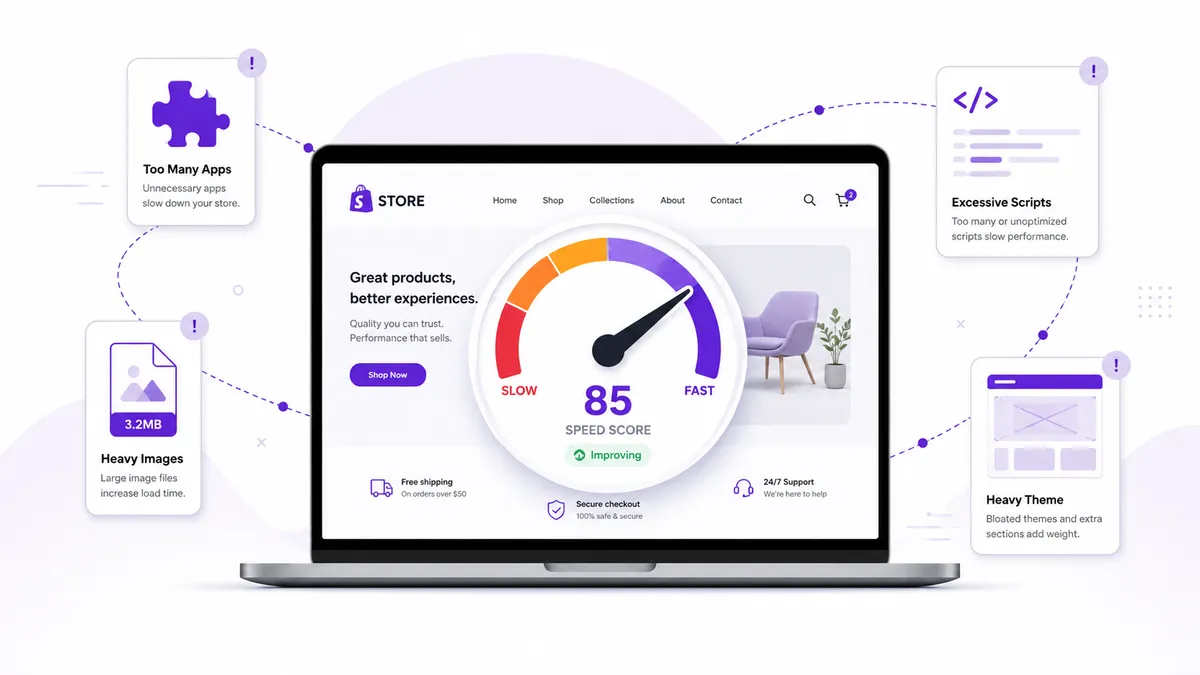
Your Shopify store is slow — and there’s a good chance it’s because of one of five mistakes. We build Shopify apps and themes for a living, so we spend a lot of time staring at speed metrics across different storefronts. The same five problems keep showing up.
The surprising part? The mistake that does the most damage isn’t what you’d expect. It’s not images and it’s not apps — it’s something most merchants never think about, and it’s quietly costing them sales. We’ll get to that one at the end. First, let’s fix the four obvious offenders.
We walk through all five in the video below, then break each one down in detail underneath.
Mistake #1: Dead app code from apps you’ve already removed
Quick question: how many apps do you have installed right now — 10? 20? And how many are you actually using?
Here’s what most merchants don’t realize. Every app you install injects code into your theme: JavaScript, stylesheets, tracking scripts. All of it loads every single time someone visits your store. That part makes sense. But here’s where it gets ugly: the code doesn’t always go away when you uninstall the app.
You can delete an app, remove it completely from your store, and its leftover code is still sitting in your theme files — still loading, still slowing things down. We’ve audited stores carrying dead code from seven different apps they no longer used, each one adding an extra HTTP request. Multiply that across every page and you’re looking at seconds of unnecessary load time.
The worst offenders are landing page builders like PageFly, GemPages, and Shogun. These are some of the heaviest apps you can install, and many of them don’t just load on the pages you built with them — they load massive stylesheets and JavaScript on every page: your homepage, product pages, collections. We’ve seen a single landing page builder add more load time than every other app combined, for a store that built one landing page six months ago and never used it again.
The fix:
- Open your Shopify admin and review your installed apps. If you’re not using it, uninstall it.
- Find the leftover code. Go into your theme code and search
theme.liquidand your layout files for<script>tags or snippet references pointing to apps you’ve already removed, then delete them.
If you are not comfortable editing Liquid, ask a developer to audit a duplicate theme. Whether you do it yourself or get help, stop paying a performance tax for apps you do not even use.
Mistake #2: Oversized product images
You hire a photographer, get beautiful product shots, and upload them straight to Shopify. They look amazing — and your load speed just tanked.
Here’s why. That image is 4,000 pixels wide and 5 MB. Your product card displays it at 400 pixels wide, but the browser still downloads the full 4,000-pixel, 5 MB file. Multiply that across every image on the page and your collection page might be loading 30, 40, even 50 MB of images shown at a fraction of their actual size. It’s like shipping a refrigerator-sized box to deliver a coffee mug.
This destroys your Largest Contentful Paint (LCP) — the Core Web Vital Google cares about most for ranking.
The fix — two things:
- Resize before uploading. Product images rarely need to be wider than 2,048 pixels; for most cards and thumbnails, 1,000 pixels is plenty. Use a free tool like Squoosh or TinyPNG to compress and resize first.
- Use responsive images. Most modern Shopify themes use the
image_tagfilter, which automatically serves different sizes to different devices. If your theme is older or custom-built, it might be serving the full-size image to everyone — including mobile visitors. Check with your developer or theme documentation.
One afternoon of image cleanup can cut your page weight in half. It’s the highest-impact change most merchants can make.
Mistake #3: Render-blocking scripts and fonts
This mistake is invisible — you can’t see it by looking at your store, because it’s happening in the code.
When a browser loads your store, it reads the code top to bottom. When it hits a <script> tag, it has a choice: load the script in the background and keep building the page, or stop everything and wait for that script to download and execute. That second option is called render-blocking, and a shocking number of Shopify apps inject their scripts without the async or defer attributes that tell the browser it’s okay to keep going.
For your customer, that means: they click your store, the browser starts building the page, hits a blocking script, and freezes. Nothing renders. They stare at a white screen while a review widget or analytics tracker finishes loading. Stack three or four of these and they queue up, each one pausing your entire store. That’s why removing a single app can sometimes make a store feel dramatically faster — you didn’t just remove weight, you removed the roadblock.
Then there are fonts — the one nobody talks about. Custom fonts are render-blocking by default. If your theme loads two or three Google Font families (or multiple weights of one), the browser has to download all of them before it can show any text. Until they arrive, visitors see invisible text or a flash of unstyled text that jumps around when the fonts load — a direct hit to both LCP and Cumulative Layout Shift (CLS). We regularly find stores loading four or five font families when the design only uses one or two.
The fix:
- Make sure third-party JavaScript loads with
asyncordeferso it can’t block rendering. - Audit how many fonts your theme loads and cut it to what you actually use. One font family, two weights max, is enough for most stores.
Diagnose this with the browser Network and Performance panels: look for scripts that delay rendering, long main-thread tasks, and font files loading weights the storefront never uses. Test one change at a time on a duplicate theme.
Mistake #4: Bloated theme sections you don’t need
This one’s tricky because it doesn’t feel like a mistake — Shopify actively encourages it.
You bought a premium theme because it has 40 sections: mega menus, slideshows, animated scroll effects, countdown timers, all the bells and whistles. But just because a feature exists in your theme doesn’t mean it’s free to use.
To be clear, not every section tanks your speed. A text block or static image barely registers. The problems are specific:
- Carousels and slideshows are the biggest offenders. That rotating homepage slideshow with five banners pulls in a JavaScript carousel library and loads all five images up front — even though visitors only ever see the first one.
- Mega menus with three-level animated dropdowns run JavaScript on every page load, whether or not anyone hovers over them.
- Animated scroll effects, countdown timers, and anything using motion add weight and often break your CLS score.
There’s also a compounding effect: even when individual sections are light, stacking 15–20 of them means more HTML, more CSS, and more Liquid rendering on Shopify’s servers. It’s rarely one section that kills you — it’s the pile-up.
The fix: Audit your homepage and landing pages. For every section, ask two questions: Is this actually helping me sell? and Could I get the same result with something simpler? That five-banner slideshow can usually become a single hero image and a strong headline — and conversion data consistently shows static heroes outperform carousels anyway. Be ruthless. Simpler pages load faster, and faster pages convert better.
Mistake #5: Treating speed as a score instead of a revenue problem
Apps, images, render-blocking code, sections — those are the four you can fix today. But the biggest mistake is more fundamental, and it’s the reason most merchants spin their wheels for weeks without their score moving.
You’ve been thinking about page speed as a Google problem — a number to push higher. But nobody has ever pulled out their credit card because your speed score went from 40 to 70. Speed matters for exactly one reason: conversions. When your store is slow, people leave before they buy. Every millisecond is either helping someone reach checkout or giving them a reason to leave. Speed isn’t a vanity metric — it’s a revenue metric.
Once you see it that way, the question changes. It’s no longer “how do I get a better score,” it’s “what’s actually making my store feel slow to the person trying to give me money?” And nine times out of ten, the answer is your theme.
Think about it: your apps sit on top of your theme. Your images load through your theme. Your sections, your layout, your checkout flow — it all runs through your theme’s code. The theme is the foundation; everything else is furniture. If your theme is well-built — clean code, fast rendering, no bloat — then the apps and images and sections are minor problems. But if your theme’s code is heavy and poorly written, you’re fighting uphill. You can optimize images all day and strip out every app, and the store will still feel sluggish, because the thing running it all was never built for speed.
We see it constantly: merchants spend weeks doing all the right optimizations, the needle barely moves, then they switch themes and suddenly everything is fast. Same products, same apps, same images — different foundation. So the real question isn’t “how do I speed up my store,” it’s “is my theme holding me back?”
Quick recap
- Dead app code from apps you’ve uninstalled
- Oversized images served far larger than they display
- Render-blocking scripts and fonts freezing your page
- Bloated theme sections you don’t actually need
- Treating speed as a score instead of a revenue lever — and ignoring your theme
Fix these five and you’re ahead of 90% of Shopify stores.
Related reading
- Step-by-Step Guide to Improve the Page Speed Score of Your Shopify Store — the detailed, step-by-step version of every fix above.
- What Is a Good Shopify Speed Score? — how to read your score and what number to actually aim for.
- The Best Shopify Page Speed Apps — which type of speed app fits your store, and what to avoid.
- Phantom App Code: The Hidden Reason Your Shopify Store Is Slow — a deep dive on mistake #1: finding and removing leftover app code.