
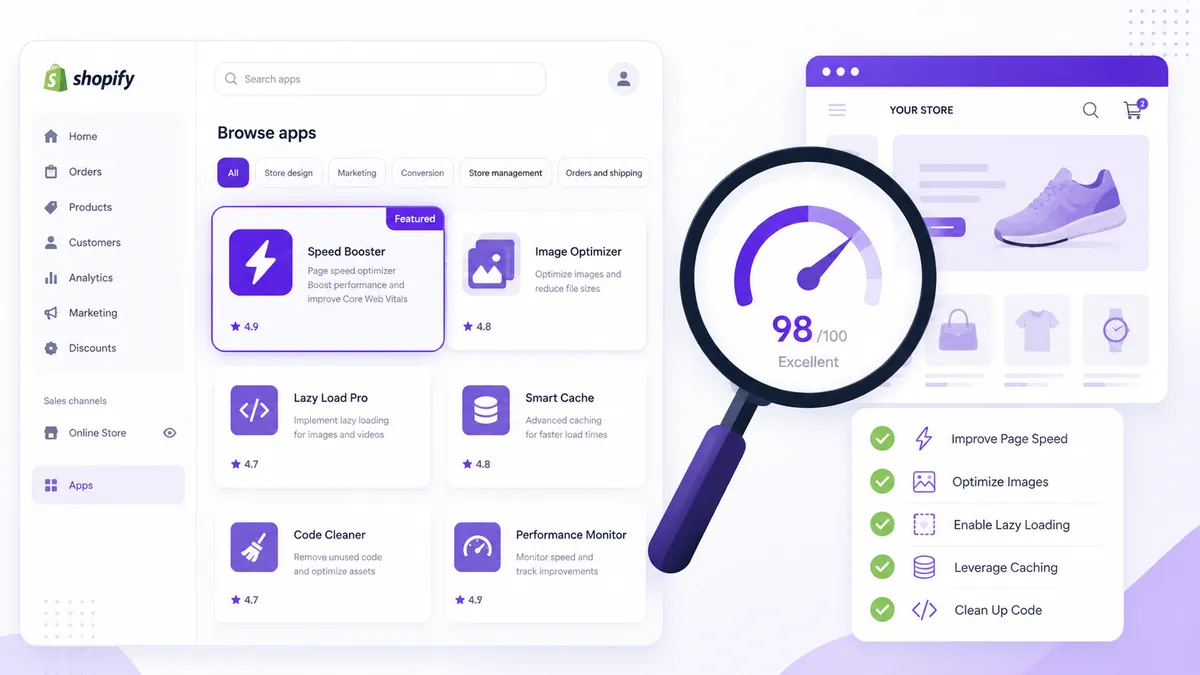
Search the Shopify App Store for “page speed” and you’ll find dozens of apps promising a faster store and a higher score. Some genuinely help. Some do very little. And a few — ironically — add weight of their own. This guide breaks down the main types of page speed Shopify app, what each actually does, and how to choose one that’s worth installing.
First, a warning: some speed apps make things slower
It sounds backwards, but it’s real. Any app you install can inject JavaScript and CSS into your storefront, and a poorly built “optimizer” is no exception. Before you install anything, be clear on which category it falls into — because they work in very different ways.
Broadly, page speed apps fall into three buckets:
- Diagnostic apps — find what’s slowing you down and tell you how to fix it.
- Optimizer apps — actively change how assets load (lazy loading, preloading, minification).
- Image-specific apps — compress and resize your images.
The best results usually come from diagnosing first, then applying targeted fixes — rather than installing a black-box “make it faster” button and hoping.
Type 1: Diagnostic apps (start here)
A diagnostic app scans your store and tells you exactly what’s hurting performance — which apps are heavy, which scripts are render-blocking, which images are oversized, and what leftover code is still loading from apps you’ve removed. The value is clarity: instead of guessing, you get a prioritized list of what to fix first.
This is the category our own app sits in. ThemeLens scans your theme code, third-party apps, and assets, gives you a health score in your Shopify admin, and flags issues in order of impact — including the “phantom” app code most merchants never find on their own. It’s read-only and doesn’t inject anything heavy into your storefront, and it’s free to start.
Choose a diagnostic app when: you want to understand why your store is slow before changing anything — which is almost always the right first step.
Type 2: Optimizer apps
Optimizer apps actively modify how your store loads assets. Common features include:
- Lazy loading images and iframes so they only load when scrolled into view
- Preloading critical resources (like your hero image) to improve LCP
- Deferring non-critical JavaScript so it stops blocking rendering
- Minifying HTML, CSS, and JavaScript
These can deliver real gains — but they come with caveats. Because they alter how your storefront renders, an aggressive optimizer can occasionally break layouts, interfere with other apps, or cause visual glitches.
What to watch for:
- Read recent reviews specifically looking for “broke my theme” complaints.
- Test thoroughly on a duplicate/preview theme before publishing.
- Prefer apps that let you toggle individual features rather than all-or-nothing.
Choose an optimizer app when: you’ve already diagnosed your bottlenecks and want help applying fixes you can’t easily do by hand.
Type 3: Image optimization apps
Since images are usually the single biggest contributor to page weight, image apps can be a high-impact, lower-risk option. They typically compress existing images, convert them to modern formats like WebP, and resize oversized uploads automatically.
Worth knowing: Shopify already serves images through its CDN and converts to WebP automatically for most themes. So the main value of an image app is compressing and right-sizing images that were uploaded far larger than they display. If your store is full of 4,000px, multi-megabyte product photos, this category pays for itself quickly. If your images are already reasonably sized, you may not need one.
Choose an image app when: you have a large catalog of oversized images and don’t want to resize them manually.
How to pick the right page speed app
Use this short checklist before installing anything:
- Diagnose before you optimize. Know what’s actually slow first — otherwise you’re installing fixes for problems you may not have.
- Check that the app is lightweight. A speed app that adds its own heavy scripts defeats the purpose.
- Read recent reviews, not just the average rating — look for theme-breaking complaints in the last few months.
- Prefer reversible changes. Favor apps you can fully uninstall without leaving code behind.
- Match the app to your real bottleneck. Oversized images → image app. Render-blocking scripts and app bloat → diagnostic + manual fixes. Don’t install all three at once.
- Re-test after installing. Run PageSpeed Insights before and after so you can prove the app actually helped.
The honest takeaway
No single app is a magic “make my store fast” button — and any that claims to be is overpromising. The most reliable approach is to diagnose first, fix the highest-impact problems (heavy apps, oversized images, render-blocking scripts), and only then decide whether an optimizer or image app fills a remaining gap. Often, the biggest wins come from removing apps and bloat rather than adding another one.
Related reading
- Shopify Page Speed Optimization: The 5 Mistakes Slowing Down Your Store — a video walkthrough of the five most common speed killers.
- Step-by-Step Guide to Improve the Page Speed Score of Your Shopify Store — the detailed fixes, step by step.
- What Is a Good Shopify Speed Score? — how to read your score and what number to actually aim for.
- Phantom App Code: The Hidden Reason Your Shopify Store Is Slow — how to find and remove leftover code from uninstalled apps.
The best place to start is knowing exactly what’s slowing your store down. Install ThemeLens — it scans your store, scores its health, and hands you a prioritized fix list, free to start. For the manual fixes themselves, see our step-by-step guide to improving your Shopify page speed and our breakdown of the 5 mistakes slowing down your store.