
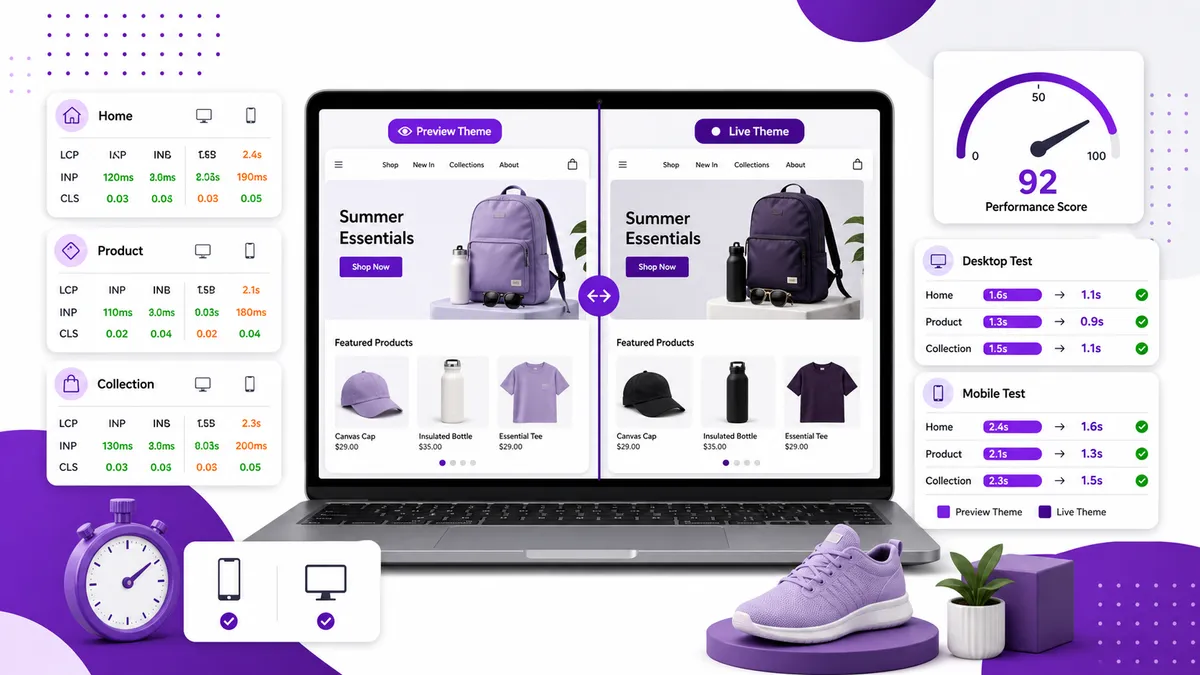
To test Shopify theme speed properly, measure three stages: the vendor’s demo as an early warning, an unpublished preview using your own catalog and apps, and the live store using real visitor data. Run the same pages several times under the same conditions and compare the median—not the best screenshot.
A theme demo can look fast and still perform badly after you add real products, apps, tracking scripts, fonts, and homepage sections. The preview-to-live comparison is what protects you from publishing a regression.
Can you test a Shopify theme before buying it?
You can test a public demo, but that only tells you how the vendor’s carefully controlled store performs.
Use it as a screening step:
- Test the demo homepage, a product page, and a collection page.
- Run each page on mobile and desktop.
- Look for heavy sliders, animations, video, and slow interaction.
- Compare more than one theme under the same test conditions.
Do not treat the result as a promise. The demo may have a tiny catalog, no third-party apps, optimized images, and none of your analytics or marketing scripts. It proves the theme can be fast in ideal conditions—not that your finished store will be.
What should you test before publishing?
Once the theme is installed as an unpublished theme, test it with your own store data.
Shopify’s official performance-testing guide recommends measuring the homepage, a product page, and a collection page. Those page types exercise different parts of the theme:
- Homepage: hero media, sections, navigation, and promotional content
- Product page: variants, product media, reviews, recommendations, and purchase controls
- Collection page: repeated product cards, filters, images, and pagination
Choose representative pages, not your lightest ones. Test a product with several images and variants, and a collection large enough to expose card and filter performance.
How to create a repeatable test
1. Copy the preview link
Open the unpublished theme in preview mode and copy its preview URL. If you are testing in a development store, Shopify can provide a shopifypreview.com URL that tools such as Lighthouse can access.
2. Use the same environment every time
Use Chrome Incognito so browser extensions do not interfere. Keep the device profile, network settings, test region, and page URLs consistent.
3. Run each page at least three times
A single Lighthouse run can move because of CPU and network variability. Shopify recommends at least three runs and using the median score. If your results are 42, 67, and 70, report 67—not 70.
4. Record the metrics, not just the overall score
The Core Web Vitals to watch are:
- Largest Contentful Paint (LCP): how quickly the largest visible element loads
- Interaction to Next Paint (INP): how quickly the page responds to interaction
- Cumulative Layout Shift (CLS): how much the layout moves unexpectedly
An overall score tells you something is wrong. The individual metric tells you where to look.
5. Test the current live theme the same way
Your unpublished theme needs a baseline. Run the same pages on the current live theme with the same settings, then compare medians page by page.
Why theme-demo results change after launch
Your finished store adds variables the vendor did not control:
- Product images and video
- Review, chat, subscription, search, and upsell apps
- Analytics and advertising pixels
- Custom fonts
- More sections and content
- Larger collections and filters
- App blocks and injected scripts
Shopify’s theme performance guidance notes that JavaScript from theme code and installed apps competes for the browser’s main thread. Heavy scripts can hurt both loading and interaction, regardless of how clean the original demo was.
That is why the most useful question is not “Is this a fast theme?” It is “Is this theme fast with our products, apps, and design choices?”
Lab data and field data answer different questions
Lighthouse and PageSpeed lab tests are controlled simulations. They are useful for comparing two versions and diagnosing a problem.
Field data comes from real visitors across real phones, networks, locations, and pages. It tells you whether the improvement actually reached customers. Shopify’s Web Performance Dashboard provides real-user Core Web Vitals broken down by device and page type.
Use the loop Shopify recommends:
- Use field data to find a real problem.
- Use lab tests to reproduce and debug it.
- Publish the fix.
- Return to field data to confirm it worked.
For a brand-new theme, you will not have field data until it receives traffic. That makes a strong pre-publish lab comparison important—but not final.
A pre-publish decision checklist
Before making the new theme live, confirm:
- Home, product, and collection pages were tested
- Mobile and desktop were both measured
- Each test was run at least three times
- Median results were compared with the current theme
- The real catalog and important app blocks were present
- Large images, sliders, and custom fonts were included
- LCP, INP, and CLS were reviewed individually
- A rollback copy of the current theme exists
- A post-launch field-data review is scheduled
Find the cause, not only the score
A speed test can tell you that the preview is slower. It cannot always tell you whether the cause is theme code, a third-party app, an oversized asset, or an old integration carried into the new theme.
Compare the browser network waterfall, main-thread activity, and rendered page before and after each controlled change. Record which resource disappeared and which metric moved so the diagnosis is based on repeatable evidence rather than one score.
For the broader repair process, see our step-by-step Shopify speed guide and how to read your Shopify speed score.