
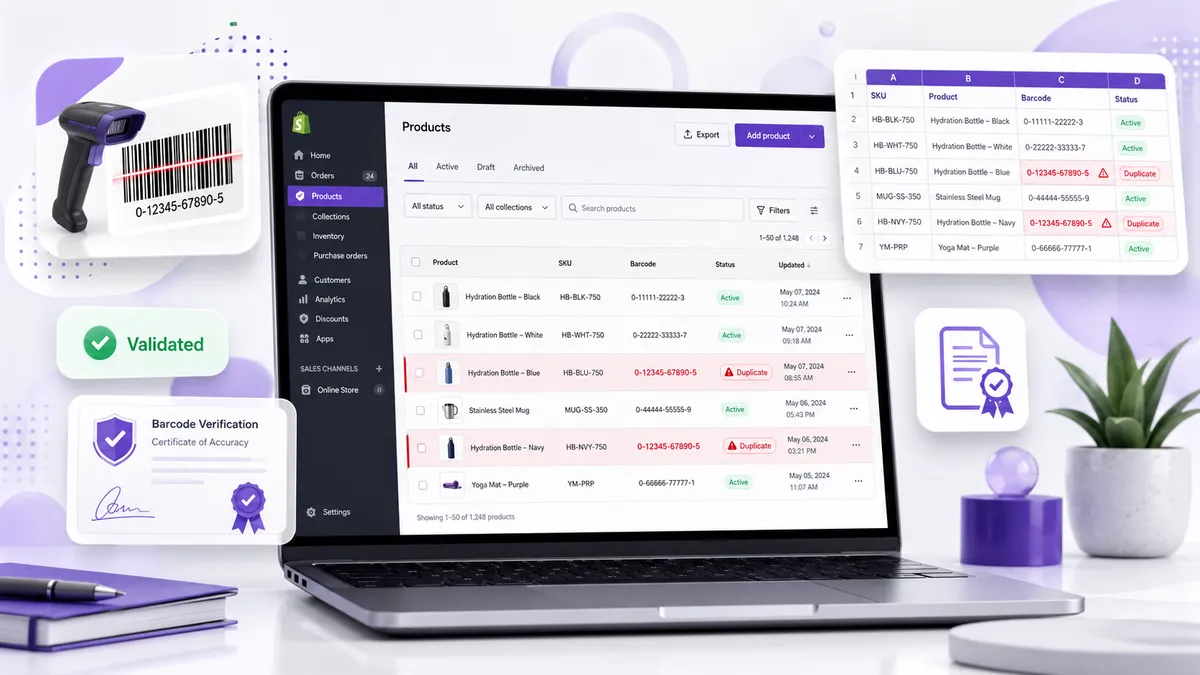
Duplicate barcodes are one of those problems that stay invisible until they’re expensive. Two products quietly share the same UPC for months, and then a marketplace rejects your listing, a retail partner’s POS rings up the wrong item, or Google Merchant Center starts disapproving products for a GTIN that’s already claimed.
The good news: duplicates are easy to find once you know where to look. Here are two ways to do it — the manual method with a CSV export, and the faster one.
Why duplicate barcodes matter
A barcode is supposed to be a unique identifier for a single sellable variant. When the same code appears twice, things break in ways that are hard to trace back:
- Marketplace rejections. Amazon, Walmart and eBay match listings by GTIN. A code already in use points at someone else’s product — or at your own other product — and the listing is refused or merged into the wrong item.
- Google Merchant Center disapprovals. Duplicate or invalid GTINs are a common cause of “Invalid product identifier” errors that silently kill your Shopping ads.
- Wrong item at the register. If you sell through retail or POS, a scanned duplicate rings up whichever product the system finds first. Sometimes at the wrong price.
- Inventory drift. Scanning workflows, 3PLs and warehouse systems key off the barcode. Two products sharing one means stock counts for both slowly go wrong.
- Returns and fulfilment errors. The picker scans a code that maps to two SKUs and picks the wrong one.
The tricky part is that Shopify does not stop you from saving the same barcode on multiple variants. There’s no built-in uniqueness check, and no warning. So duplicates accumulate quietly.
How duplicates get in there in the first place
Knowing the causes helps you predict where to look:
- Duplicating a product in Shopify copies its variants — including their barcodes.
- CSV imports with a mis-mapped column, or a re-run of the same import, can write one code across many rows.
- Suppliers reusing codes across their own catalog, or handing you a spreadsheet with repeats already in it.
- Placeholder codes — someone types
000000000000or123456789012into a few products to get past a validation step, and never comes back. - One code applied to a whole product instead of one per variant. A shirt in 3 colours and 4 sizes needs 12 distinct barcodes, not 1.
- Cheap reseller codes that were issued to another company’s GS1 prefix and sold to more than one buyer.
Method 1: Find duplicates with a CSV export
This is the free, no-app route. It works, it just has to be redone by hand every time.
Step 1: Export your products
In your Shopify admin, go to Products, click Export, choose All products and the Plain CSV file format, then Export products. Shopify emails you the file.
The export has one row per variant, and the column you care about is Variant Barcode.
Step 2: Open it in Google Sheets or Excel
Import the CSV. Before you do anything else, note which column letter holds Variant Barcode — it varies with your export. For the examples below we’ll assume it’s column X.
Step 3: Flag the duplicates
In Google Sheets, add a helper column and enter this in row 2, then fill down:
=IF(X2="", "", IF(COUNTIF(X:X, X2&"")>1, "DUPLICATE", ""))The X2&"" matters. Barcodes are long numbers, and COUNTIF will otherwise compare them as numeric values — which quietly treats codes differing only past the 15th digit as identical, and can mangle leading zeros. Forcing text comparison avoids both problems.
The IF(X2="", "", …) wrapper skips products with no barcode at all, so your blank rows don’t all flag each other.
In Excel, the same formula works, or use the built-in highlighter: select the barcode column, then Home → Conditional Formatting → Highlight Cells Rules → Duplicate Values. Be aware this highlights blanks as duplicates of each other too, so filter empties out first — and format the column as Text before importing, or Excel will strip leading zeros from your UPCs.
Step 4: Get a clean list of the offenders
Filter the helper column to DUPLICATE, then sort by barcode so the conflicting rows sit next to each other. Now you can see which products share which codes.
Step 5: Fix them
For each conflict, decide which product keeps the code, and assign a fresh, valid barcode to the other. Then either edit those variants by hand in the admin, or fix the CSV and re-import it.
What this method costs you
It works, but be honest about the ongoing cost:
- It’s a point-in-time snapshot. A duplicate created tomorrow won’t show up until you export again.
- Spreadsheets are hostile to barcodes — leading zeros get eaten, long codes turn into scientific notation like
6.09E+11, and a single bad paste corrupts the data you’re trying to audit. - It finds duplicates, but tells you nothing about whether the codes are otherwise valid — a duplicate is one problem, a bad check digit is another.
- Fixing means a manual edit pass or a risky re-import.
- On a catalog of a few thousand variants, expect to lose an afternoon. Every time.
Method 2: Let the app find them for you
This is what we built Dragon Buy GTIN, UPC Barcodes to handle. Instead of exporting and formula-wrangling, the app scans your catalog and surfaces duplicates directly:
- Automatic duplicate detection across your whole catalog — every product and variant, grouped so you can see exactly which items share a code.
- Check-digit and format validation at the same time (UPC-A / EAN-13), so you catch mathematically invalid codes in the same pass, not in a second audit.
- Fix in place. Reassign a barcode from the app and it validates as you go — no CSV round-trip, no re-import risk.
- Bulk assignment for the products you find are missing codes entirely.
- Export anytime to keep a master record for your own files.
The practical difference isn’t just speed, it’s that it’s repeatable. Checking again next month is a click rather than another export-and-formula session.
Need replacement codes? Buy them in the app
Finding a duplicate is only half the job — you then need a clean code to replace it with. You can buy barcodes directly inside the app, and they come with a certificate of authenticity confirming the code was legitimately issued to you. Purchase what you need and assign it to the affected variant immediately, without setting up a separate vendor account or importing anything.
That closes the loop: find the conflict, buy a clean code, assign it, validated — all in one place.
Manual vs. app, side by side
| CSV export method | Dragon Buy GTIN, UPC Barcodes | |
|---|---|---|
| Cost | Free | Free to install |
| Finds duplicates | Yes, with a formula | Yes, automatically |
| Validates check digits | No | Yes |
| Leading-zero / formatting risk | High | None |
| Fixing conflicts | Manual edits or re-import | In-app, validated |
| Re-checking later | Full export again | A click |
| Replacement codes | Source them separately | Buy in-app, with a certificate of authenticity |
A quick prevention checklist
Once you’re clean, stay clean:
- One barcode per sellable variant — never one per product.
- Audit after every bulk import, not just once a year.
- Never duplicate a product in Shopify without clearing the copied barcodes.
- Ban placeholder codes. An empty barcode field is far safer than a fake one.
- Keep a master record of which code went to which variant, so you can spot a repeat before it’s saved.
- Check before big moments — a new marketplace launch, a Google Shopping feed submission, or peak season.
The bottom line
Shopify won’t warn you about duplicate barcodes, so the check is on you. The CSV export method is free and works fine for a small catalog if you’re careful with text formatting. Past a few hundred variants — or if you’d rather not repeat the audit by hand every month — Dragon Buy GTIN, UPC Barcodes finds duplicates and invalid codes in one pass, and lets you buy certified replacement codes without leaving Shopify.
Related reading
- How to Assign & Manage UPC Barcodes on Your Shopify Store — getting codes onto products and variants correctly.
- Where to Buy UPC Codes for Shopify (Without Getting Burned) — GS1 vs. resellers vs. buying in-app.
- How Dragon Buy GTIN, UPC Barcodes Can Help Your Business — what the app does and who it’s for.
Not sure whether your catalog has duplicates? Install Dragon Buy GTIN, UPC Barcodes — it’s free to get started and will tell you in one scan. Questions? Contact us and we’ll help.