
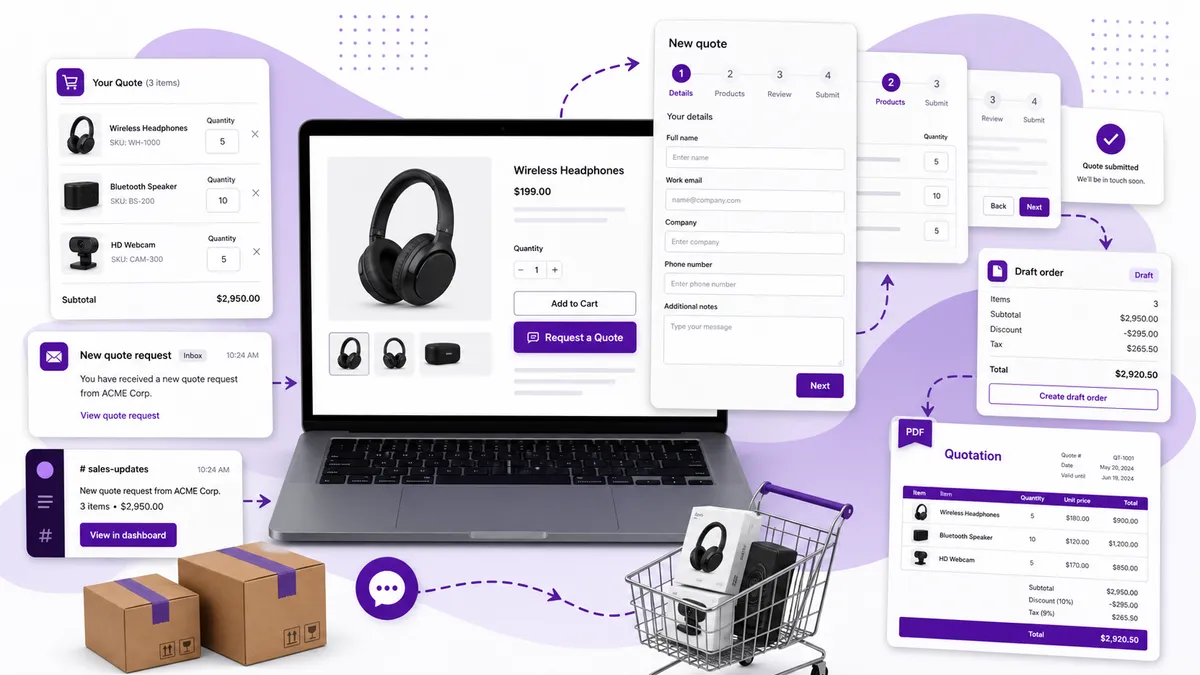
The cleanest way to add a Request a Quote button to Shopify is to use an app block and a product-aware RFQ form. That keeps the setup out of fragile theme code, preserves the products and quantities the buyer is asking about, and gives your sales team a structured path from enquiry to draft order.
Here is how to set the workflow up properly—not just make a button appear.
Step 1: Decide where the quote button should appear
Start with the buying journey. A quote button can make sense on:
- Product pages for custom, high-value, or made-to-order items
- Collection pages when buyers need to compare several quote-only products
- The cart when a customer should request pricing for the whole basket
- A landing page for a service, project, or trade enquiry
Do not add the button to every product by default unless every product genuinely needs quoting. Standard items with fixed prices should usually retain a normal Add to Cart path. The fewer unnecessary decisions you place in front of a buyer, the better.
With DA:Request a Quote, Hide Price, you can place quote buttons on product, collection, and cart pages without code, then control where they appear using product and customer rules.
Step 2: Choose what happens to the price and Add to Cart
There are three common patterns:
Quote alongside normal purchasing
Keep the price and Add to Cart visible, then add Request a Quote as a second option. This suits bulk buyers who might purchase normally at small quantities but want negotiated pricing for a larger order.
Replace Add to Cart with Request a Quote
Keep the public price visible as a guide, but route the actual sale through quoting. This can work for products that need delivery calculations, installation, or final specification before payment.
Hide both price and Add to Cart
Use this when there is no honest fixed price to show. Replace the missing controls with clear wording such as Request a Quote, Price on Request, or Log in to See Price.
If you are hiding prices, read our guide to hiding product prices on Shopify before launch. The rule needs to cover search, collection cards, recommendations, and mobile—not only the main product page.
Step 3: Build a form people will actually finish
An RFQ form should collect enough information to price the job without turning into an interrogation.
Start with the essentials:
- Name and email
- Company name for B2B enquiries
- Product, variant, and requested quantity
- Delivery location or postcode when freight matters
- A short description of the requirement
- File upload when artwork, measurements, or plans are necessary
Then ask a harder question: Will the answer change the quote? If not, remove the field.
Long B2B forms get abandoned. Use steps to group related questions and show the easiest fields first. A buyer is more likely to continue after entering a name and email than after being presented with fifteen fields at once.
Step 4: Preserve the product context
This is the main advantage of a quote workflow over a generic contact form.
The submission should retain:
- The products and variants requested
- Quantities
- Customer details
- Form answers and uploaded files
- Any message attached to a line item or the overall request
Without that context, your team has to email the buyer to ask what they were looking at, then re-enter the entire request manually. The form captured a lead, but it did not reduce any sales work.
Step 5: Send alerts where the sales team will see them
A quote sitting unseen is worse than no quote feature at all because the buyer assumes somebody is responding.
Choose a shared destination your team already monitors. Email is the baseline. Slack is useful when several staff members need visibility and nobody lives inside Shopify Admin all day.
Request a Quote can send email and Slack alerts for new quotes. It also supports abandoned-form recovery, so a buyer who starts a multi-step enquiry and leaves can be followed up instead of disappearing silently.
Set an internal response expectation as well. The software can deliver the alert; it cannot decide who owns it. Even a simple rule—“the first available rep acknowledges every quote within one business hour”—is better than an inbox everyone assumes somebody else is watching.
Step 6: Turn the accepted quote into a Shopify draft order
Do not trap the final sale in a separate mini-CRM if Shopify can remain the order system.
A useful quote workflow should create a Shopify draft order containing the agreed products and customer details. From there you can apply pricing, discounts, shipping, and taxes using Shopify’s normal order tools.
Shopify lets merchants send a draft-order invoice containing a secure checkout link. When the customer completes checkout, the draft becomes an order in Shopify.
Request a Quote converts quotes into Shopify draft orders and can generate a branded PDF quotation. That gives the buyer a professional document while keeping the eventual transaction inside Shopify.
Step 7: Test the complete journey
Do not stop when the button looks right. Run a real test from beginning to end:
- Visit the store as a logged-out buyer on mobile.
- Open a quote-only product from a collection page.
- Confirm the intended price and Add to Cart behavior.
- Add the product to the quote and submit the form.
- Confirm the email and Slack alerts arrive.
- Open the quote in Shopify Admin.
- Convert it into a draft order.
- Generate the PDF and send the checkout link to a test address.
- Check what happens if the buyer abandons the form partway through.
Repeat the test for a normal product that should still be directly purchasable. Quote rules should not accidentally block the rest of your catalog.
What should happen after a customer requests a quote?
The buyer should receive a confirmation, your team should receive the request with full product context, and somebody should respond with a clear next step. That might be a question, a revised price, a PDF quotation, or a draft-order checkout link.
The button is only the front door. The real value is the workflow behind it: structured information in, fast team visibility, and an accepted quote converted into a payable Shopify order.
Install DA:Request a Quote, Hide Price to add that workflow to product, collection, and cart pages without custom theme development.