
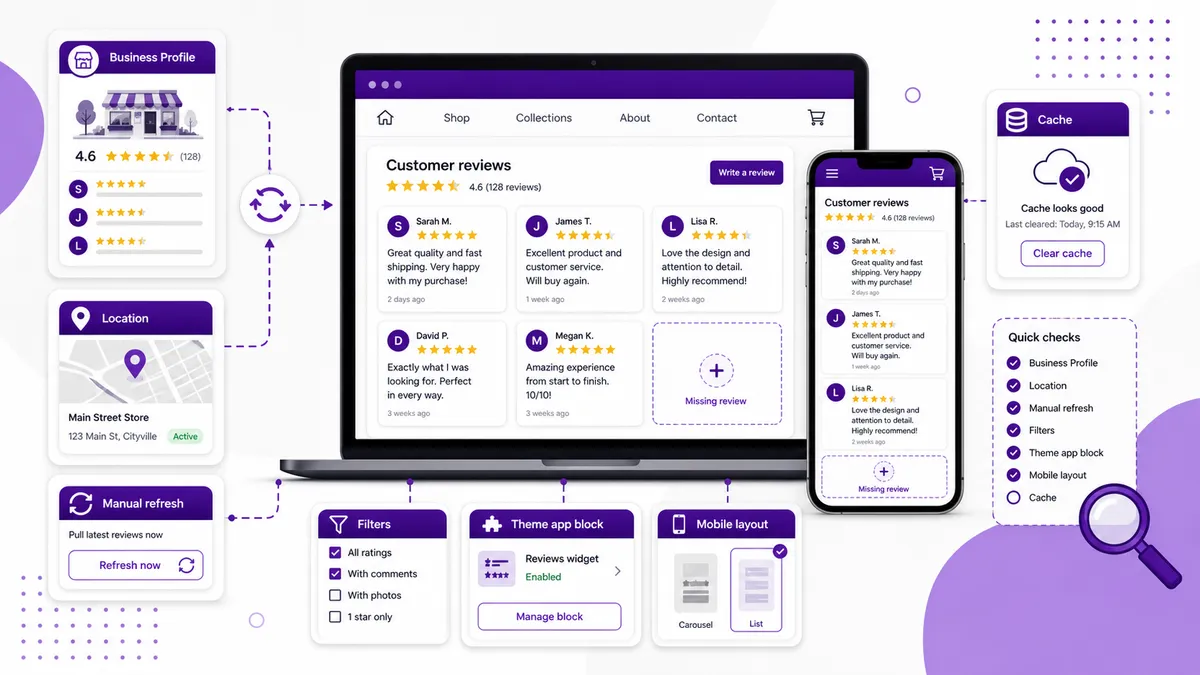
When Google reviews are not showing on Shopify, first identify which layer failed: the review might not be visible on Google yet, your Shopify app might not have refreshed its imported data, or the storefront widget might not be rendering. Reinstalling the app before you know the layer can wipe out a working setup without fixing the actual problem.
Work through these eight checks in order.
1. Is the review visible on the correct Google Business Profile?
Open the business directly in Google Search or Maps while logged out of the owner’s account. Confirm that the review appears publicly on the exact profile and location connected to Shopify.
If the review is missing on Google too, the Shopify widget cannot import it.
Google explains that reviews are checked against its policies and can take a few days to appear. Reviews can also be removed for spam or policy violations, delayed after profile merges, or temporarily disabled for some profiles and categories. See Google’s guide to missing or delayed Business Profile reviews.
Do not treat every delay as a widget problem.
2. Did you connect the correct business and location?
Businesses with similar names or several locations are easy to mix up. Compare:
- Business name
- Street address
- Google Maps URL
- Location or Place ID, if shown
- The review count visible on that profile
If your Shopify widget shows older reviews from the wrong branch, the connection may be working perfectly—it is simply connected to the wrong place.
3. Has the Shopify app refreshed its review data?
Displaying reviews on Shopify usually involves importing or syncing review data from Google, then rendering the stored result in a theme block.
The refresh schedule matters. Google Reviews by DragonApps supports manual review refresh on the free plan and automatic daily refresh on Premium. A new Google review will not necessarily appear in the widget the moment it becomes public.
Open the app and run a manual refresh if your plan supports it. Then compare the review count inside the app with the count shown on the public Google profile.
If Google shows 43 reviews and the app shows 42, the problem is in refresh/import. If the app shows all 43 but the storefront shows fewer, move to the display checks.
4. Is a filter deliberately hiding the review?
Check the widget’s review filters and display limits.
A review can be imported correctly but excluded because of:
- Minimum star rating
- Maximum number of displayed reviews
- Sort order
- Location selection
- Manual or advanced review filters
- A layout showing only a subset at one time
Be especially careful when testing with a lower-rated review. If the widget is configured to show only four- and five-star reviews, a three-star review not appearing is expected behavior—not a sync failure.
5. Is the app block still present in the active theme?
Go to Online Store → Themes → Customize and open the template where the reviews should appear. Confirm that the Google Reviews app block or section is still present and visible.
Common causes:
- You published a new theme that never received the block
- The block was added to a different product or page template
- A section was removed during homepage editing
- The app embed is disabled
- You customized an unpublished theme while viewing the live store
If the reviews disappeared immediately after a theme publish, check the active theme before changing anything inside the app.
For the original placement workflow, see how to add Google reviews to your Shopify store.
6. Is the widget present but visually hidden?
Open the page in your browser, then search the page source or use developer tools to see whether the widget container exists.
If the markup is present but invisible, look for:
- Text and background using the same color
- A zero height or width
display: noneor hidden overflow- A parent section hidden on a particular device
- A z-index placing the widget behind another element
- Custom CSS written for an older widget layout
Test after temporarily removing recent custom CSS. If that fixes it, restore rules one at a time instead of replacing the entire widget.
Our Google Reviews widget customization guide lists the supported CSS variables and is a safer reference than targeting fragile internal selectors.
7. Does the problem happen only on mobile?
Do not accept “it works on my laptop” as a complete test.
Check:
- A real phone, not only a narrow desktop browser window
- Portrait and landscape orientation
- More than one mobile browser
- Carousel swiping and navigation controls
- Drawer and badge layouts
- Long reviewer names and review text
A desktop grid may collapse incorrectly on mobile, while an app block can be hidden by device-specific theme settings. Google Reviews by DragonApps includes mobile-optimized layouts, but theme CSS can still affect the surrounding section.
8. Are you seeing cached theme or page content?
After refreshing reviews or editing the theme:
- Save the changes.
- Open the storefront in a private/incognito window.
- Hard refresh the page.
- Test the direct page URL, not an old Theme Editor preview tab.
- Confirm you are looking at the active theme and intended market/domain.
If a CDN, page-builder, or optimization app adds another caching layer, clear it according to that provider’s instructions.
A quick diagnosis table
| What you see | Most likely layer |
|---|---|
| Review absent from Google and Shopify | Google moderation/profile issue |
| Review visible on Google but missing inside the app | Refresh, connection, or import issue |
| Review visible inside the app but missing from widget | Filter, limit, or display issue |
| All reviews disappeared after changing theme | App block/embed missing from active theme |
| Widget works on desktop only | Responsive layout or theme CSS issue |
| Widget appears in editor but not storefront | Wrong theme/template, unsaved change, or cache |
When should you reinstall?
Reinstall only after you have confirmed that the public Google profile, business connection, imported review data, filters, active theme, app block, and CSS are all correct.
Before uninstalling, record your settings and widget placement. Reinstallation can create extra work and may not affect a review that Google has delayed or removed.
If you need a straightforward way to connect a Google Business Profile and display its reviews through Shopify Theme Editor, install Google Reviews by DragonApps. The free plan supports one business location, up to 20 imported reviews, and manual refresh; Premium adds all reviews and automatic daily refresh.